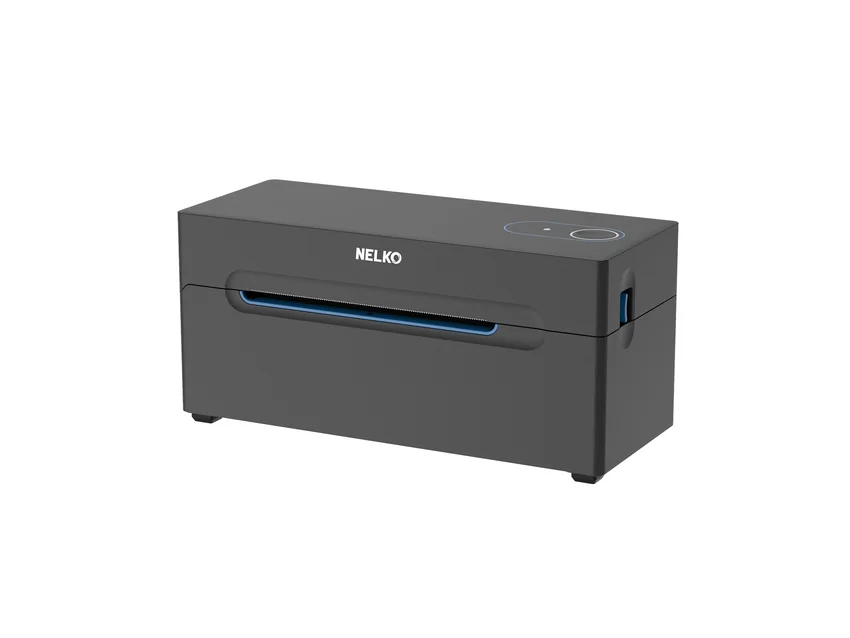
Nelko
Nelko PL70E
A desktop printer for sellers who want to use either rolls or fanfold labels.
- Label format4 × 6 in
- Label feedRoll or fanfold feed
Choose a 4 × 6 shipping label printer for Mac. Compare documented USB connections, driver requirements, label stock, and tips for printing from a PDF.
Start with a model that documents a Mac USB path for your system version. Check label feed and available desk space after compatibility.
A desktop printer for sellers who want to use either rolls or fanfold labels.
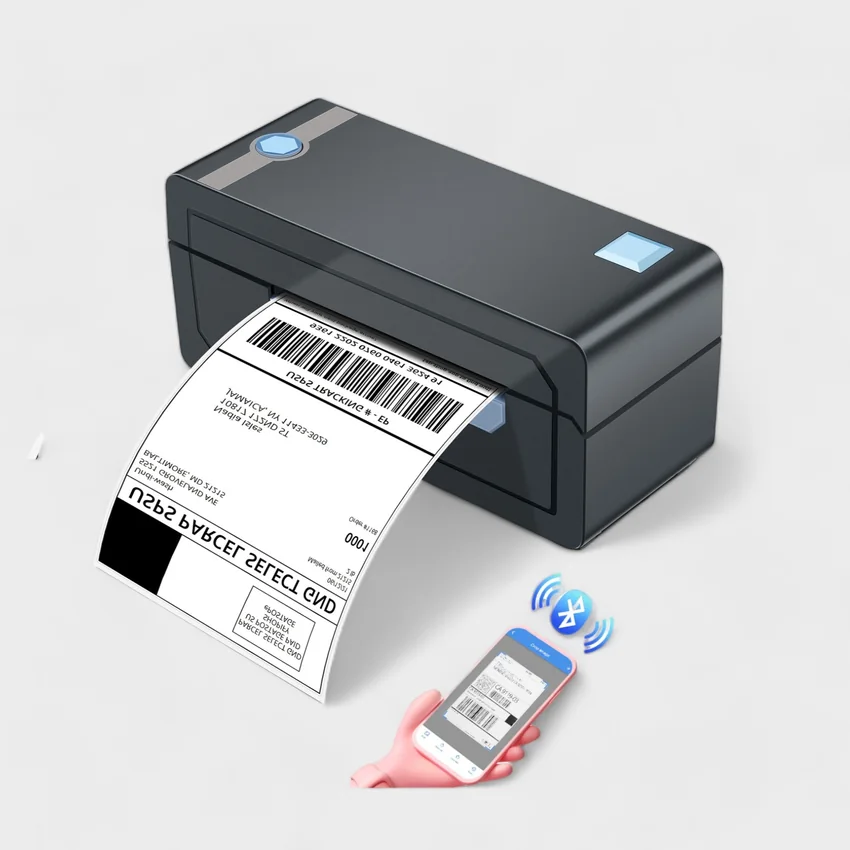
A small-business shipping-label printer with phone and desktop setup options.
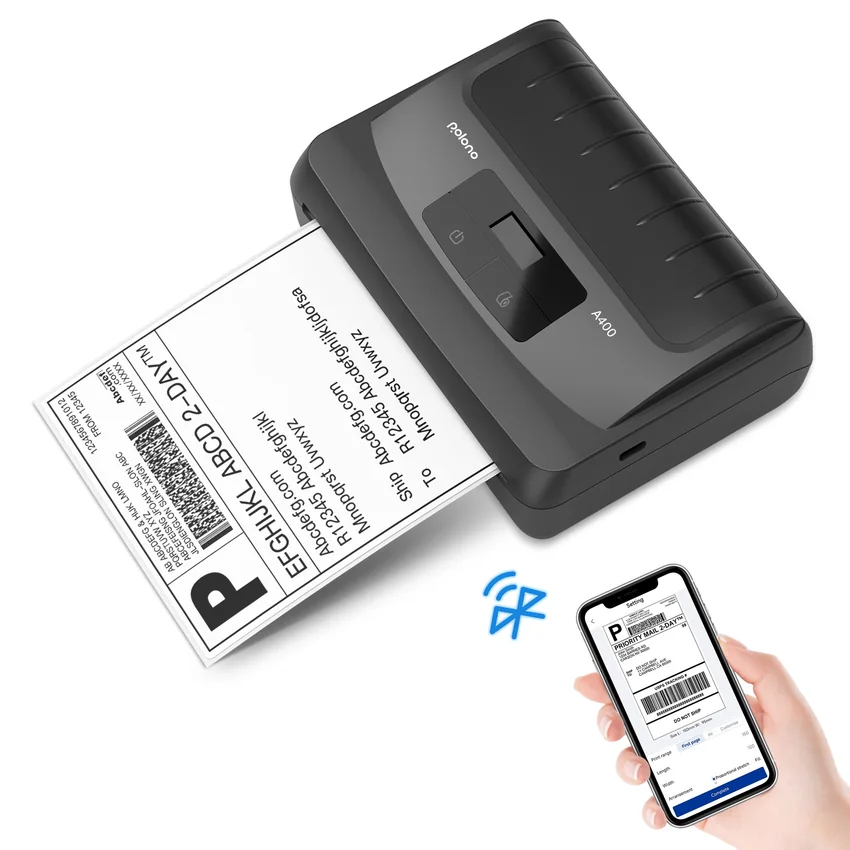
A compact choice for occasional parcel shipments and small packing tables.
Scroll to see all printers.
| Specification | POLONO A400 | Nelko PL70E | JADENS 268BT |
|---|---|---|---|
| Label format | 4 × 6 in | 4 × 6 in | 4 × 6 in |
| Connection | Phone app, Bluetooth on supported Windows devices, USB | Phone app, Bluetooth on supported Windows devices, USB | Phone app, Bluetooth on supported Windows devices, USB |
| Label feed | Internal roll compartment | Roll or fanfold feed | Roll or fanfold feed |
| Resolution | 203 dpi | 203 dpi | 203 dpi |
| Label width | 42–110 mm | 1.54–4.1 in | 1.57–4.1 in |
Nelko documents a USB setup, and the PL70E works with roll and fanfold labels.
Nelko PL70E manufacturer instructionsJADENS has a model-specific USB driver path for Mac and a separate mobile app for compatible phones.
JADENS 268BT manufacturer instructionsPOLONO documents a USB setup, and the internal roll compartment suits a smaller desk.
POLONO A400 manufacturer instructionsLook up the driver for your version of macOS, check the cable and available ports, and confirm that the app or carrier can export a true 4 × 6 PDF.
We compared manufacturer specifications and setup instructions across the criteria for this guide. The comparisons rely on published product information and do not include timed printing tests.
On a Mac with only USB-C ports, check the cable or adapter you plan to use. Print a correctly sized PDF at actual size and inspect the barcode before running a batch.
Yes, when the printer provides a compatible driver and USB connection for your Mac. Select the appropriate paper size in the print dialog and check one test label before printing a batch.